




Features
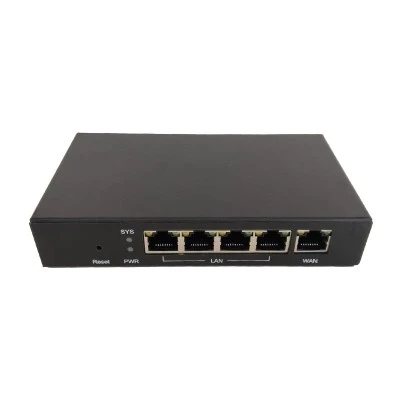
DWR-C5300R
This 2.4ghz 5.8ghz dual band wi-fi router is a stable Wi-Fi router which is targeted for all users requiring high-speed data interfaces in a cost-effective indoor housing. Powered by the robust CPU and MU-MIMO technology, combined 802.11ac Wi-Fi specification with dual-band technology and Gigabit Ethernet ports, DWR-C5300R offers fast internet connection, allows more users for connecting, provides you and your family speedy, smart wireless internet, users can enjoy bandwidth-intensive multimedia services such as real-time audio, and gaming much easier and faster than before.
This 2.4ghz 5.8ghz dual band wi-fi router is equipped with security measures to protect your home network and connected devices.
- Encryption Standards: It supports the latest WPA3-Personal encryption protocol for the highest level of wireless security, ensuring password protection and enhanced cryptographic strength. It remains backward compatible with WPA2-PSK (AES) for older devices.
- Firewall Protection: A Stateful Packet Inspection (SPI) firewall actively monitors incoming and outgoing traffic, blocking potential Denial-of-Service (DoS) attacks and unauthorized intrusions.
This 2.4ghz 5.8ghz dual band wi-fi router supports advanced WAN connection types:
- PPPoE (Point-to-Point Protocol over Ethernet): designed for connections that require username and password authentication. It ensures a stable and secure tunnel between the user's home network and the ISP, allowing for reliable high-speed data transmission.
- Static IP Support: The Static IP feature allows the router to use a fixed IP address. This is essential for hosting servers, enabling remote access to surveillance systems, or maintaining consistent connectivity for VPNs.
The DHCP server automates the assignment of IP addresses to every device on your local network (laptops, smartphones, smart TVs). Simply connect a device to the network, this 2.4ghz 5.8ghz dual band wi-fi router automatically assigns it a unique IP address.
The QoS features on DWR-C5300R enable service providers to design QoS policies and prioritize mission-critical services such as IPTV and Internet freely based on their individual service plans. This in turn allows service providers to deliver real multi-play applications to users with the best possible Internet experience.
Parameter
|
Description |
Wi-Fi5 Dual-band Broadband Router |
|
Wireless Speed |
2.4GHz 300Mbps 5.8GHz 866Mbps |
|
Standard |
802.11a/b/g/n/ac |
|
Frequency |
2.4GHz & 5.8GHz |
|
Transmission Power (Max) |
2.4GHz:22dbm 5.8GHz:20dbm |
|
Interface |
1*FE WAN+4*FE LAN |
|
Antenna |
4*5dbi fixed |
|
WAN Mode |
DHCP/Static/PPPOE |
|
Easy Mesh |
no |
|
TR069 |
yes |
|
Advanced Functions |
802.1Q VLAN/DHCP options (43/60/121) Bandwidth Control /Access Control/Port Forwarding/DDNS/DMZ/Parent Control /Black List/MAC Filter/IP filter/URL Filter/QOS/Anti-DOS attack |
Hot Tags: 2.4ghz 5.8ghz dual band wifi, China 2.4ghz 5.8ghz dual band wifi manufacturers, 2 4ghz 5 8ghz Dual Band Wifi, AC1200 Dual Band Wifi5 Router, AC1200 Wifi Router, wifi 5 router


